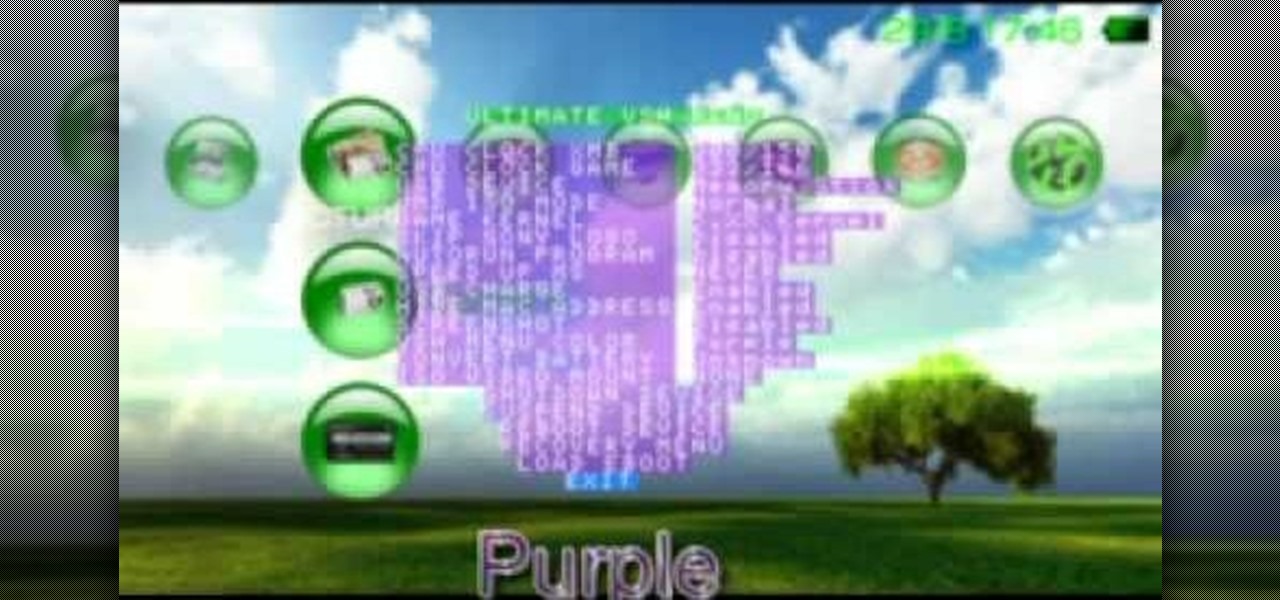
Please note that I included the vsh.txt in this ZIP file so that you don't have to open Notepad in Windows or other word processing software. From the readme (edited by me; so read this first):
Features of this plugin are :
* All functions of the official VSH Menu.
* Ability to customize the colors.
* The SELECT button can either open the Recovery(in-VSH Recovery), the VshMenu or nothing.
* Recovery can reboot by holding R and exit the Recovery (useful for VSH plugins and other configurations).
* The SELECT button can be change via the combo R + L + [].
* VSH Recovery can be open in the VSH Menu.
* Random color option is available to change the system color randomly.
* An option in the VSH Menu to quickly start a homebrew (ms0:/PSP/GAME/VSHMENU/EBOOT.PBP).
* Convert battery option is available in the VSH Menu (convert battery to Normal, Pandora or Autoboot).
* Slim Colors Patch by Bubbletune integrate (only for psp phat).
* USB charge can be change in the VSH Menu (only for psp slim).
* Ability to hide the MAC address in the System Information.
* UMD update icon can be hide in the XMB.
* Possibility to take screenshots (combos are NOTE, R + NOTE, L + NOTE, R + SCREEN, L + SCREEN or NOTE + SCREEN).
* Ability to suspend the device in the VSH Menu.
Requirement for use it :
* All PSP with a 5.xx Custom Firmware on board (even PSP-2000v3 and PSP-3000) : 5.00M33, 5.02GEN, 5.03GEN or 5.50GEN
Installation :
* Download UltimateVSHmenuREVISED.zip
* Connect your PSP to computer via USB Wire.
* Toggle your PSP in USB Mode.
* Click with right button of your mouse on downloaded file.
* Choose 'extract files..'
* Choose the letter that the system attribute to your PSP in desktop.
* Click on OK and wait that all files are copied on your computer.
Note : if you have old version of UVSHM, files need to be overwrited.
* Disconnect from USB mode and reboot PSP
* Enjoy.
How to use it ?
* select : Open UVSHM menu from XMB, or go to Recovery menu, or nothing. Action depends of your settings.
* Left + Right + Square : Change the SELECT button effect.
* Up or Down : Choose an option in menu
* Right or left : change value in one option.
* X : Validate an option
* R + Note : take a screenshot (it depends of your settings)
Focus on Ultimate VSH Menu fonctions :
* CPU Clock XMB :
- Choose the processor's speed in XMB
* CPU Clock GAME :
- Choose the processor's speed in GAME
* USB Device :
- Choose between MS, Fo ,F1 F2 F3, and UMD in USB mode.
* UMD ISO Mode
- Choose between différents ISO launching ways (Normal, OE ISOFs, M33 Driver, Sony NP9660)
* USB Charge
- Accept, or not, to charge battery from USB
* Hide MAC Adress
- Hide, or not, the PSP MAC Adress
* Hide UMD Update
- Hide Update Icon from UND
* Screenshot
- Allow, or not, to screenshot and choose the key/combo to do it.
(R, R + Note, L + Note, R + Screen, L + Screen, Note + Screen, Disable)
* SELECT Button
- Allow to choose action affected to SELECT Button (Recovery, VSH Menu, or nothing) - Shortcut : L + r + SQUARE
* Random Color :
- Enabled ot disabled Random Color
* Convert Battery
- If the PSP can make it, this option can convert your battery in a pandora one or restore it to a normal one.
* ISO Video Mount
- Mount/unmount an ISO from UMD Video
* Shutodwn Devive
- Shutdown PSP
* Suspend Device
- Suspend PSP
* Reboot device
- Reboot PSP
* Recovery Menu
- Open the Recovery Menu directly from VSH
Load EBOOT
- Load ms0:/PSP/GAME/VSHMENU/EBOOT.PBP
Notes:
o For use the in-VSH recovery on ChickHEN & CFWEnabler, copy the vshrecovery.prx file to the seplugins folder on your memory stick.
P.S. Don't use a readme included in the file, just read here above instead.
Apr 25, 2012 - 8 min - Uploaded by Rob PapalloThis is a Tutorial on how to install the Zero VSH Patcher on your PSP system.
Custom Firmware Extender (aka cfe) is a set of plugins that will add some extra options to your SONY PSP. This plugin was originally developed by Cpasjuste. My modificaton is to allow it to work efficently on 6.XX Custom Firmwares. My modifications only include updated function offsets and NIDS for 6.XX custom firmwares. I will not be adding any new features to this program.
• Change the speed of the PSP CPU/FSB while under the VSH (PSP Menu) or in-game (Umd/Iso/Homebrews) from the cfe menu or with a quick combo key.
• Change the brightness of the PSP while under the VSH or in-game from the cfe menu or with a quick combo key.
• Take some screenshot while under the VSH or in-game from the cfe menu or with a quick combo key.
3ds Home Folder Download
• Load some PRX plugins while under the VSH or in-game from the cfe menu. Note that on slim PSP, they are loaded in the extra slim memory, so you should be able to load more plugins than you usally can.
• Start and stop USB under the VSH or in-game from the cfe menu.
• Play your Umd/Iso/Homebrews on your PC screen and make some in-game videos with the help of remotejoyLite from Akind, based on Tyranid work.
Sims 4 Mods Folder Download
• Stream/play Iso/Homebrews hosted on your computer via USB (based on HostCore by Poison).
Protected Folder Download
• Reset and Power off the PSP while under the VSH or in-game.
• Listen custom music (mp3, at3, oma, omg and aa3) while under the VSH or in-game, based on music.prx by joek2100. Note that if you have some subfolders under an album folder, files won't be found for now.
• 'Time Machine' feature, you can reboot to any TM compatible firmwares, they are automatically detected by cfe 3.0. Note that you must configure each TM firmware to load CFE under the VSH to be able to easly reboot to your original firmware. There is already a sample configuration under the TM folder in this archive. If you encounter some problem's to go back to your original firmware, connect to your PSP via USB, go to the 'TM' folder and replace 'config.txt' with 'config.txt.back' to restore your original configuration.
• Change/mute volume of each music channel's of the psp.
• Grab some informations about the PSP memory (Usefull to know how much space a prx plugin require) and battery.
• Set a default CPU/BUS speed at startup.
• Set a default brightness level at startup.
• Configure all the buttons/settings from the cfe menu.
• Removed the USB autostart feature since the 5.00 fw include a similar function.
• Fixed a bug that prevented the auto-sleep and backlight auto-off features to work.
• Combo button's are back (change the cpu/brightness, take screenshots with a quick combo key).
• Fully configurable via the menu, changes can be saved. Note that there is now a different configuration file for game and vsh modes.
• Usb streaming recoded, based on the great work of Poison (hostcore). PC hard drive is redirected to the PSP, alowing streaming of homebrews, music, videos, and isos in any mode (sony, m33, umd.). Just select 'Remap usb to ms' in the menu then browse your games like you usally do.
• Music player improved, can now be completly stopped from the menu, and/or properly restarted with another music directory source.
• PSP phat compatibility added, but in-game music player is removed for now (not tested).
• Gui colors configurable via the configuration files ('game.cfg' and 'vsh.cfg') in ABGR hex format.
• Added the possibility to prevent the plugin to be loaded (hold L trigger) while starting a game, or load the light version of cfe (hold R trigger) so extra slim memory is not used, preventing some plugins (pspstates) to not work.
• Copy the content of the 'seplugins' folder to the seplugins folder of your memory stick.
• Take a look at the file 'game.cfg' and 'vsh.cfg' files under 'ms0:/seplugins/cfe' and adjust to your needs.
• Enable cfe_loader.prx under the m33 recovery menu (Hold R while starting the PSP) in vsh and game. (you may need to activate it under pops to make it work on FAT PSP, strange bug).
• Set cpu speed to default under the m33 recovery menu.
Download mp3 audio clips of radio mirchi murga. • Press NOTE + R to load the cfe menu (default configuration).
• You can DISABLE the cfe plugin by holding the L trigger button while starting the psp or a game if needed.
• On slim PSP, you can load the light version of cfe by holding R trigger button while starting the psp or a game so extra slim memory is not used. This can prevent some plugins (pspstates) to not work.
• Waiting for reports @ http://mydedibox.fr/forums/
• Team wildcard, the gui is based on theire sources.
• Tyranid for psplink.
• joek2100 for his work on the mp3prx module for CF, giving the source of his work.
• brethren and AllyOmega for the beta test.
• People I may forget.
Top Posts
- Pc Tools File Recover Crack Serial Number
- Patch Pes6 Pro Evolution Soccer 6 Pc Margaritaville
- Office 2003 Professional Iso Deutsch Download Google
- Nick Cave The Bad Seeds Push The Sky Away Rapidshare Free
- Maging Sino Ka Man Book 2 Download
- Die Siedler 3 Gold Edition Amazonen Kampagne Germany
- Cafe English License Key Free Download